Using the web app
The web app is live at washy-washy.ryankes.eu. It reads the same chart and machine files the CLI does, rendered as a page instead of a PDF.
Bundled vs. active config
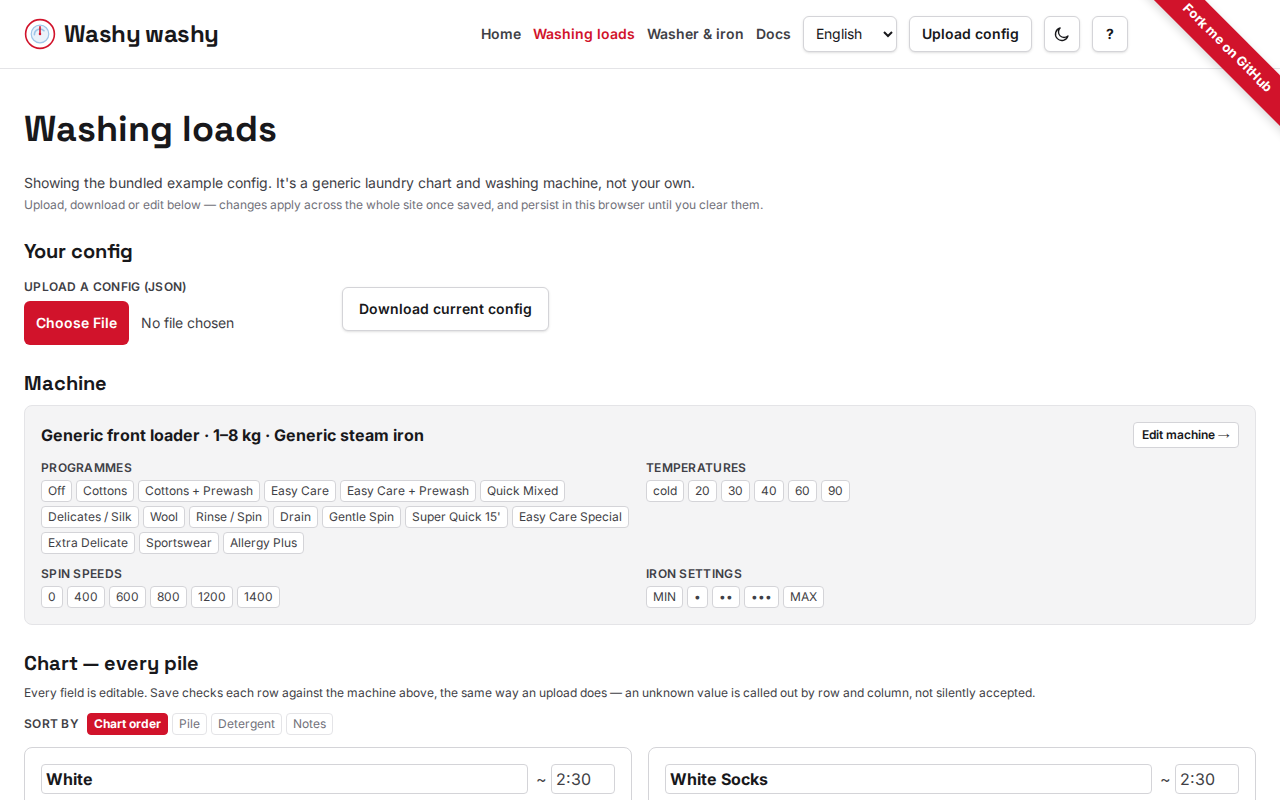
Section titled “Bundled vs. active config”The front page (/) ships with a made-up example chart and machine — the
same dummy data the CLI’s own README shows. That’s what a first-time visitor
sees, and it’s what every page falls back to when nothing else is active.
Uploading a config replaces it. The “Upload config” button in the header —
present on every page — and the fuller upload/download section on
/config both take the same
{ machine, chart } JSON file (see
the chart and machine files), validate it, and
store it in the browser’s localStorage. From then on, every page reads
that config instead of the bundled one, until you clear it.
Editing on /config or /config/machine
works the same way: a save writes the edited config to the same storage.
Nothing here is sent to a server — a config never leaves your browser, and a
different browser or a cleared site data starts back at the bundled example.
/config also has a download link, which writes the currently active config
— bundled or custom — back out as the same JSON shape you’d upload. That’s
the round trip for editing a copy elsewhere, or handing your config to
someone else.
Theme toggle
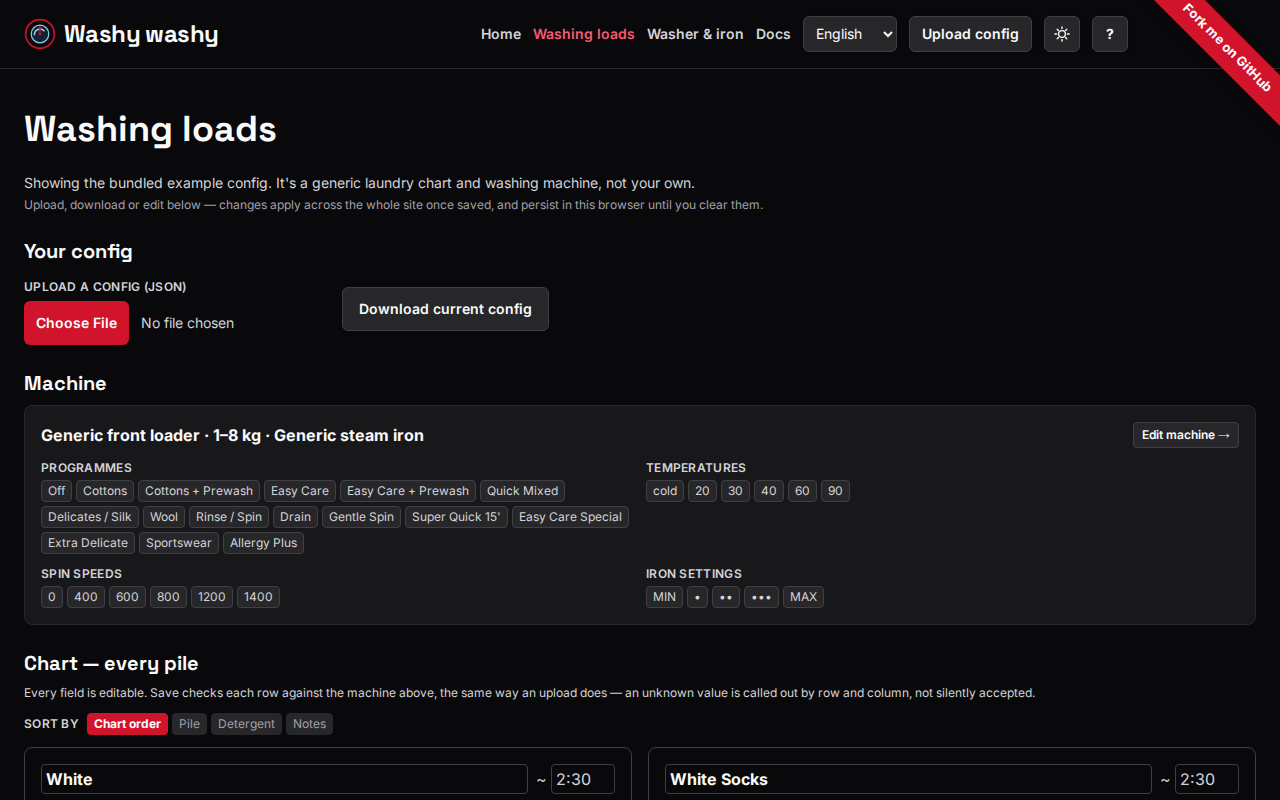
Section titled “Theme toggle”The header also has a light/dark toggle, next to “Upload config” on every
page. Left alone, the site follows your OS or browser’s
prefers-color-scheme setting, same as before this existed. Clicking it sets
an explicit choice instead, stored in localStorage, which then overrides
that OS setting on every page and every future visit — until you click it
again. It’s a two-state toggle, not a picker: there’s no separate “back to
system” option.
Keyboard navigation
Section titled “Keyboard navigation”The site also responds to a handful of vim-style shortcuts, mounted once in the header so they work on every page — these docs included:
jandkscroll the page down and up.gg(pressgtwice) jumps to the top.G(shift-g) jumps to the bottom./focuses the page’s own search field — the pile search on the front page, for example — without typing a slash into it.?(shift-?) opens a help overlay listing all of these;Escor a click outside it closes it again.
The same overlay also opens from the ? button in the header, for anyone
using a mouse or a screen reader instead of the keyboard. None of these
shortcuts fire while you’re typing into a text field, a textarea, a select
or anything else editable — normal typing always wins.
Filters
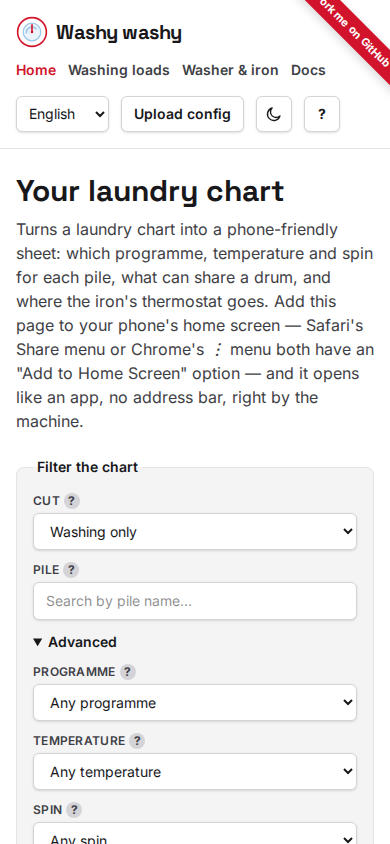
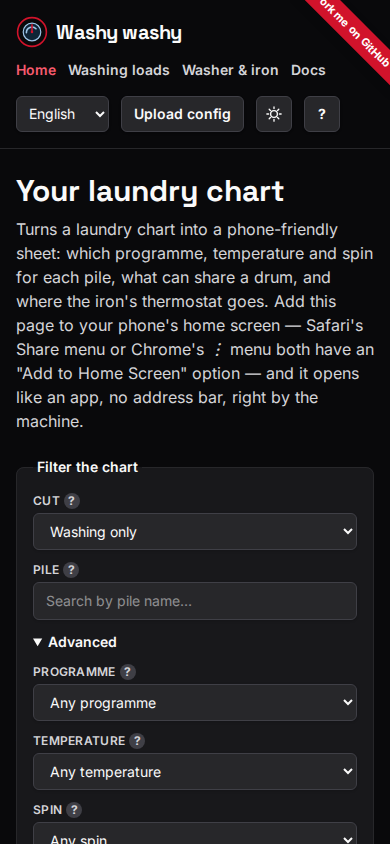
Section titled “Filters”The front page filters by which cut you want (full chart, washing only, ironing only) and by a free-text pile search, plus an “Advanced” disclosure — closed by default — for filtering by an exact programme, temperature or spin, and a detergent search. All of them narrow the same list; a pile has to match every active filter to show.
The programme, temperature and spin selects only ever offer values that would still leave at least one pile showing, given the pile search and whatever else you’ve already picked in Advanced — so you can’t pick a combination that lands you on an empty chart. The lists update live as you change other filters, and if a field has nothing left that could match, it disables itself instead of showing empty options.
Filters persist in localStorage between visits, the same way a config
does. A filtered view is also shareable: the address bar carries cut,
pile, program, temperature, spin and detergent as query
parameters, and a URL carrying any of them wins outright over whatever was
saved from a previous visit — see Share below for the button that hands that
URL off.
Next to the PDF download buttons sits Share this view, which sends the current page URL as-is — filters and all, since the address bar already carries them as query parameters (see Filters above), so there’s nothing extra to package up.
If you’ve got a custom machine or chart active (see
Bundled vs. active config), the link also
carries that whole setup, appended as a compressed #config= fragment.
Whoever opens it gets your exact machine and chart, not just your filters —
even in a browser that’s never touched your localStorage. Nothing here
touches a server either: a fragment is never sent over the network, so the
link itself is still the entire transfer, the same as an uploaded config
file. Once the page has read and saved it, it clears the fragment from the
address bar — reload or share again from there, and you get the site’s
normal short URL, not the one-time link. A link that’s been corrupted or
hand-edited shows the same row/column-scoped error an invalid config upload
does, and the page falls back to whatever was already active rather than
breaking. When nothing custom is active, the link is unchanged from
before — filters only.
It tries the browser’s native share sheet first (navigator.share —
Messages, WhatsApp, AirDrop, whatever the OS offers), falling back to
copying the URL to the clipboard — showing “Copied!” the same way a card’s
own Copy link button does — only when that API isn’t available, or when
it’s available but genuinely fails. Cancelling the share sheet is neither:
it’s just declining that one method, so nothing else happens and nothing
gets copied behind your back.
PDF export
Section titled “PDF export”The front page has two download buttons, both scoped to whatever’s currently
filtered onto the page and rendered client-side with the same
@washy-washy/pdf the CLI’s
bun run generate uses. Neither generates anything until you click it —
filtering the page never triggers a render in the background.
- Download for phone writes the same narrow, single scrolling page the CLI produces — meant for reading off your phone next to the machine.
- Download to print writes an A4 sheet instead: a reference table plus one detail card per pile, meant to be printed and stuck up.
A single card also has its own Download button, for one pile at a time. It’s phone format only — the print layout always draws the whole reference table plus every pile’s card, so there’s no way to scope it down to just one pile the way the phone format can.
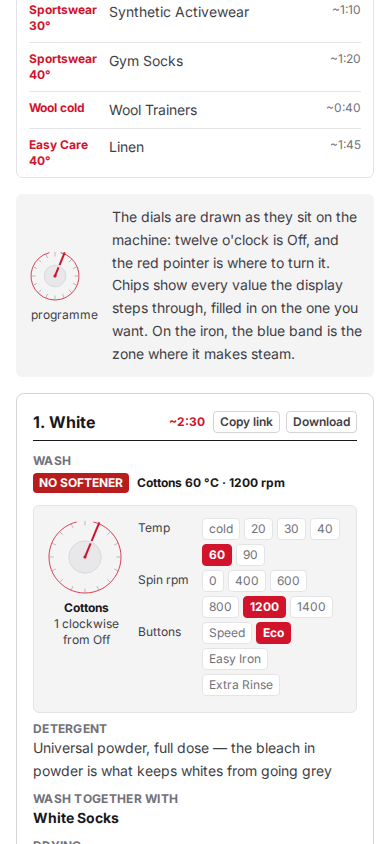
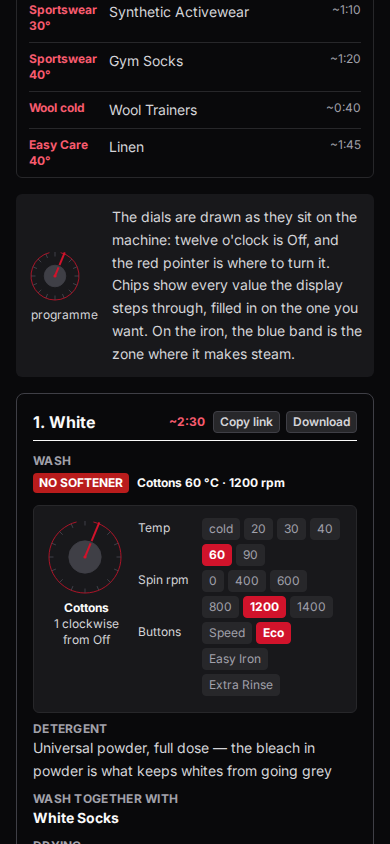
Copy link, next to a card’s download button, puts that filtered view’s URL on your clipboard — the same clipboard fallback the page-level Share button above uses, scoped to one card.